

Most AI in localization stops at the string in front of you. It rephrases, it adjusts tone, it flags a QA issue – and then you go back to the dashboards, the filters and the twelve browser tabs to actually run your projects.
Crowdin Copilot works the other way round. By bridging the gap between LLMs and the Crowdin API, it executes complex workflows that previously required manual labor, custom scripts, or engineering support.
It doesn’t just tell you information about your projects, it can act on them.
Who Copilot is for
Copilot works at two levels, and which one you meet first depends on your role.
Managers and admins get it at the organizational level: progress across every project, tasks created and assigned, users audited, reports pulled – the work that used to mean dashboards, filters and half an hour of clicking.
Linguists meet it in the Editor, where it already sees what they see: the active string, its translations across every language, votes, approvals, QA flags, and the workflow step they are on. Asking whether a term is consistent across languages takes one question, not a round of copy-pasting into a chat window.
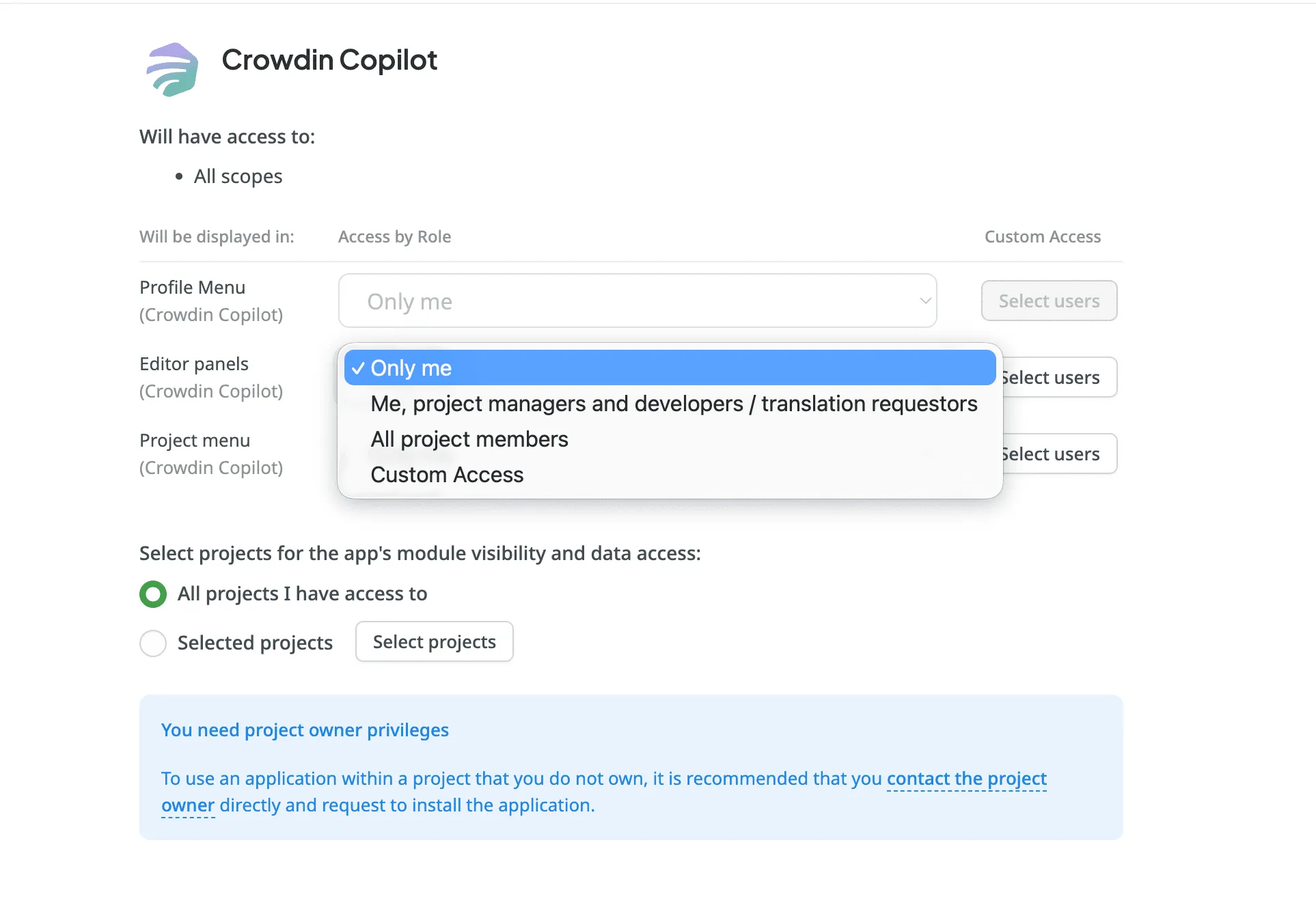
Access levels are up to your admins: a read-only agent for translators, full access for the localization team.
Advanced management and customization
Crowdin Copilot is designed to be flexible to fit any workflow.
Ask and Task agents
After installing from the Crowdin Store, Crowdin Copilot is accessible from the main navigation menu in the top right corner at the organizational level, or within the Editor while you work. It operates in two distinct modes to suit your needs:
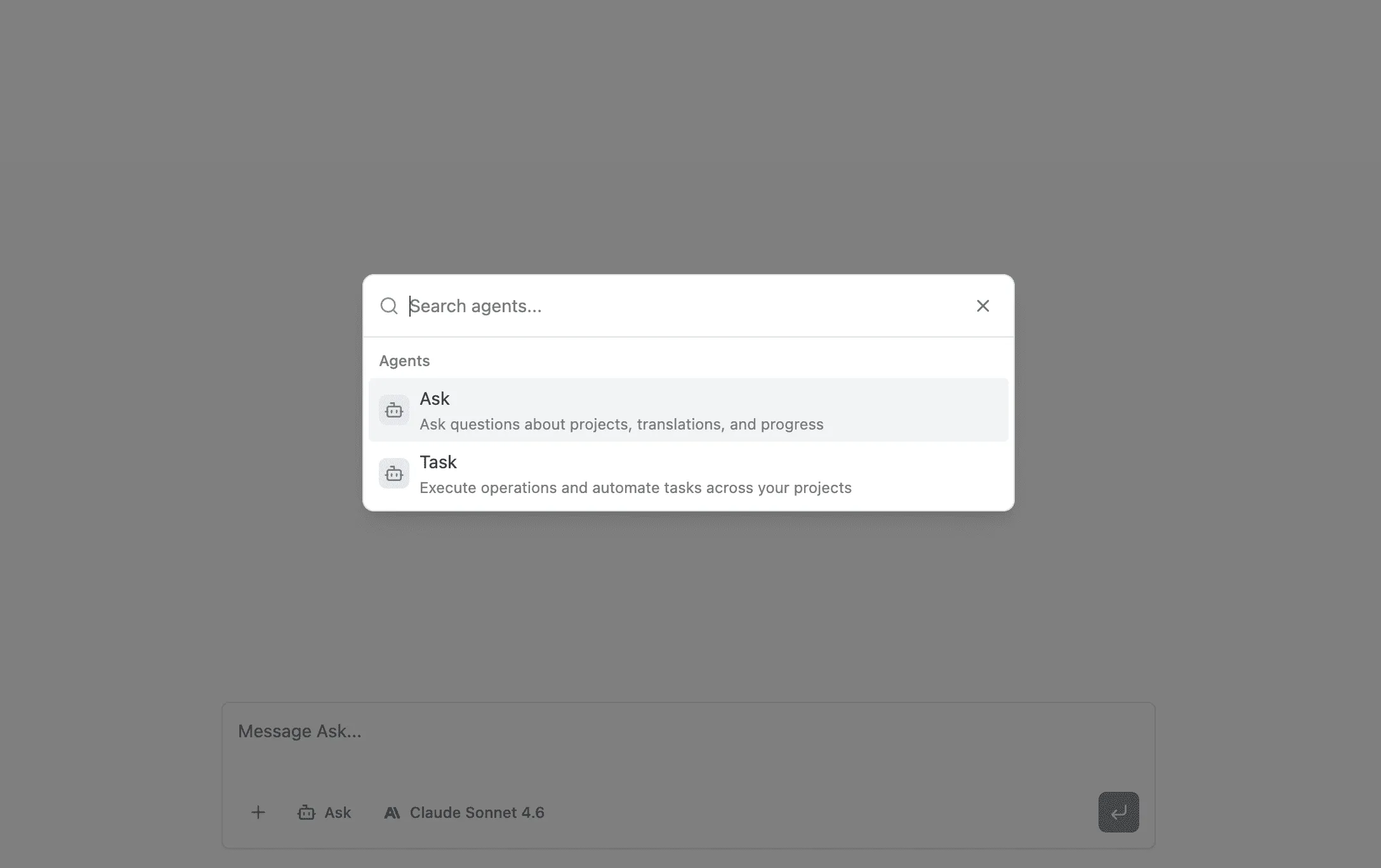
- Ask: Instead of digging through dashboards or filtering through dozens of projects, simply ask about progress, file statuses, or project health.
- Task: Instruct AI to perform operations across your projects, and watch it execute them in real-time.
Build your Custom Agents
Beyond the standard Ask and Task agents, you can create Custom Agents tailored to your specific organizational needs. Define a unique system prompt and build agents such as a “Style Guide Expert” or a “Technical Terminology Auditor”.
You have granular control over exactly which tools each custom agent can use, selecting from hundreds of Crowdin-specific actions related to AI, Glossaries, Bundles, and more.
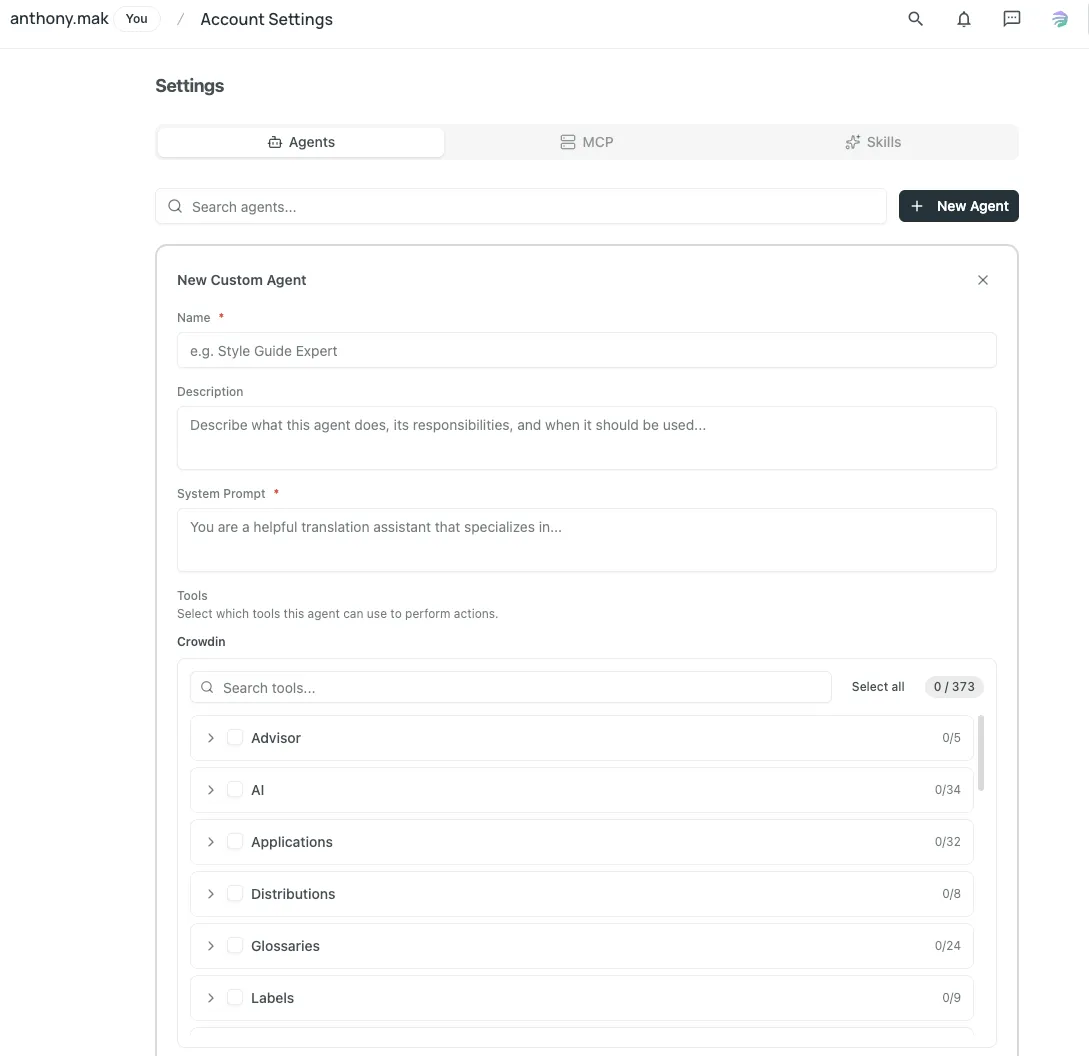
Where to find Copilot settings?
In crowdin.com, go to Account Settings and find the tab Crowdin Copilot. In Crowdin Enterprise, go to Organization Settings and find the tab Crowdin Copilot.
Experience the next generation of AI-powered management.
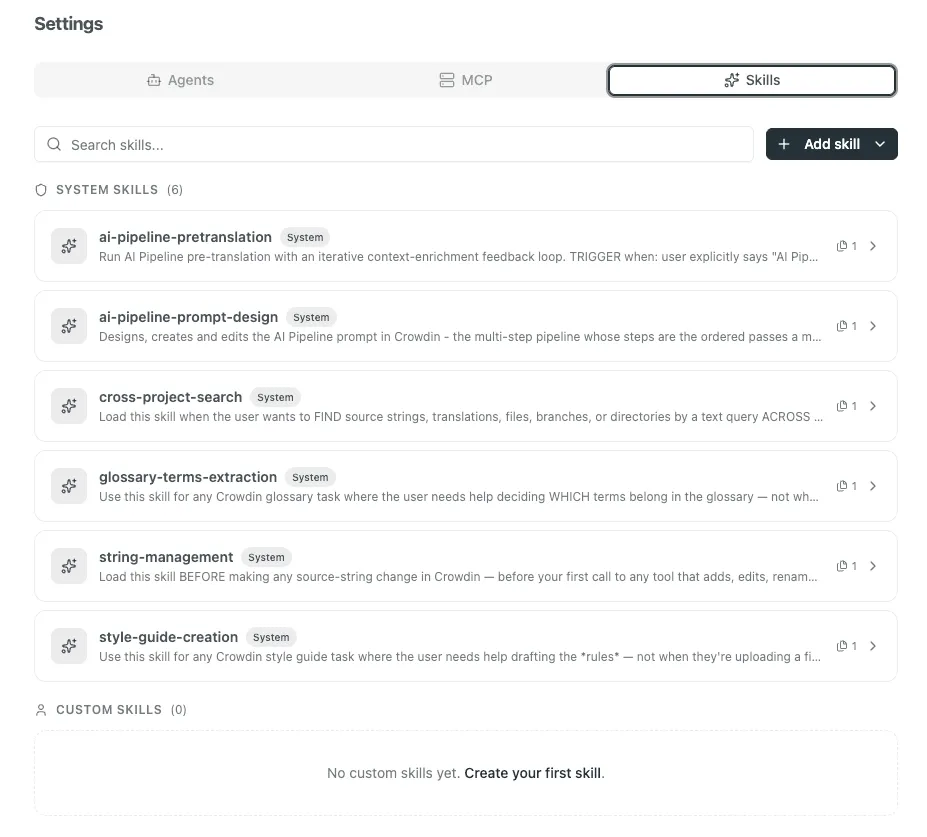
Teach Copilot your team’s skills
Custom agents define who Copilot is. Skills define what it knows about the way you work.
Every team has knowledge that lives nowhere: how you decide what goes in the glossary, why release notes never use the imperative, the six things a new locale needs before launch. It sits with the person who’s been there longest, and everyone else re-asks it. With AI, you re-explain it in every single chat.
A skill is that knowledge written down once. Copilot pulls it in when the conversation calls for it, and the whole organization gets the same answer – including the person who joined last week. It’s the same Agent Skills format coding agents use, so if your developers already maintain skills, they carry over. Admins own them; everyone else just notices Copilot got better at their workflows.
Copilot also ships with skills for the work managers do most often – drafting a style guide from real translations, finding glossary candidates in source content, editing strings without losing what’s already translated. See the full list.
MCP to connect with your tech stack
Crowdin Copilot supports the Model Context Protocol (MCP), which enables you to integrate the localization ecosystem with your external tools. You can add MCP servers to connect Copilot directly to:
- Development & Collaboration: Connect to GitHub, GitLab, Slack, or Notion to pull documentation or sync project updates.
- Project Management: Integrate with Linear to manage workflows.
- Analytics & Tracking: Link to PostHog or Sentry for real-time data and error tracking.
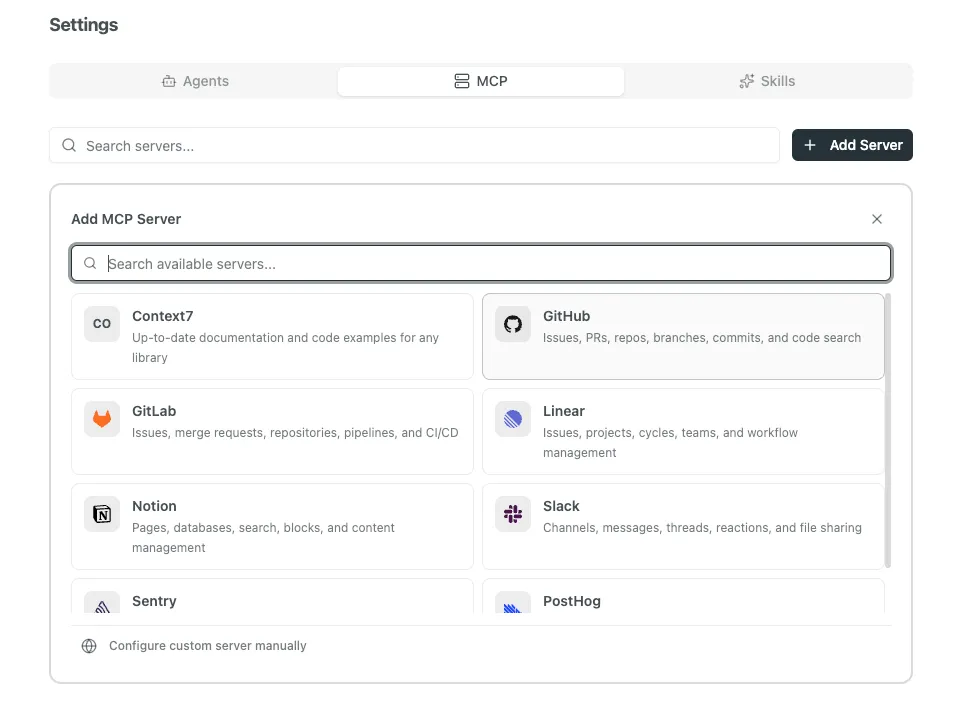
If you have proprietary tools, you can even configure a custom MCP server manually by providing a server URL and headers to discover your own internal tools. This makes Crowdin Copilot a central hub that can “speak” to your entire company’s infrastructure.
Add files and images to the chat
Crowdin Copilot lets you upload images or files directly to the chat for additional context. You can provide visual context by uploading UI screenshots or attaching reference materials like technical briefs for the AI to analyze before executing a task.
Simply use the Add photos or files button.

Stop waiting on the agent
Chat with AI usually means watching it work and doing nothing. Spot a mistake halfway through a long task, and your only option is to let it finish wrong.
Copilot doesn’t work that way. Type while it’s running and your message joins the task in progress – the correction lands while it still matters. Ctrl/Cmd+Enter queues a message for after, so you can line up three things and walk away. There’s a voice input feature if describing a task is faster than typing it, and a completion sound for when you have gone off to do something else.
Crowdin Copilot + AI Pipeline
One of the most transformative shifts in the manager’s workflow is how Copilot interacts with the AI Pipeline. Previously, running an auto-translation might leave a manager with hundreds of ambiguity flags – strings that the AI couldn’t confidently translate without more context. Resolving these manually often slowed down production.
Now, Crowdin Copilot closes that loop. When you initiate an auto-translation via the Copilot, it starts the process and monitors it. If the AI Pipeline hits a wall with 800 ambiguous strings, the Copilot analyzes those failures to find common denominators. Instead of asking you to review 800 individual flags, it synthesizes the problem into a few core questions.
As a result, your job shifts from “resolve 800 flags” to “answer 4 questions”.
- For gaming: Instead of flagging 500 dialogue lines, Copilot might ask: “What are the genders of characters X and Y?”
- For SaaS: Instead of pausing on 300 UI strings, it might ask: “Should I use formal or casual register for this Japanese localization?”
- For technical docs: It identifies term inconsistencies (for example, “Workspace” vs. “Work area”) and asks you to pick the gold standard.
Once you provide the answer, Copilot re-runs the pipeline with the new context, completing the translation without further uncertainty.
And you no longer have to build that pipeline yourself. Describe what you want in plain language, and Copilot assembles it – reading your project first, so it only offers steps your content can actually support. No screenshot-based context step on a project with no screenshots. You approve a plan before anything is created, and Copilot validates the configuration before saving, so a broken pipeline doesn’t surface halfway through a run.
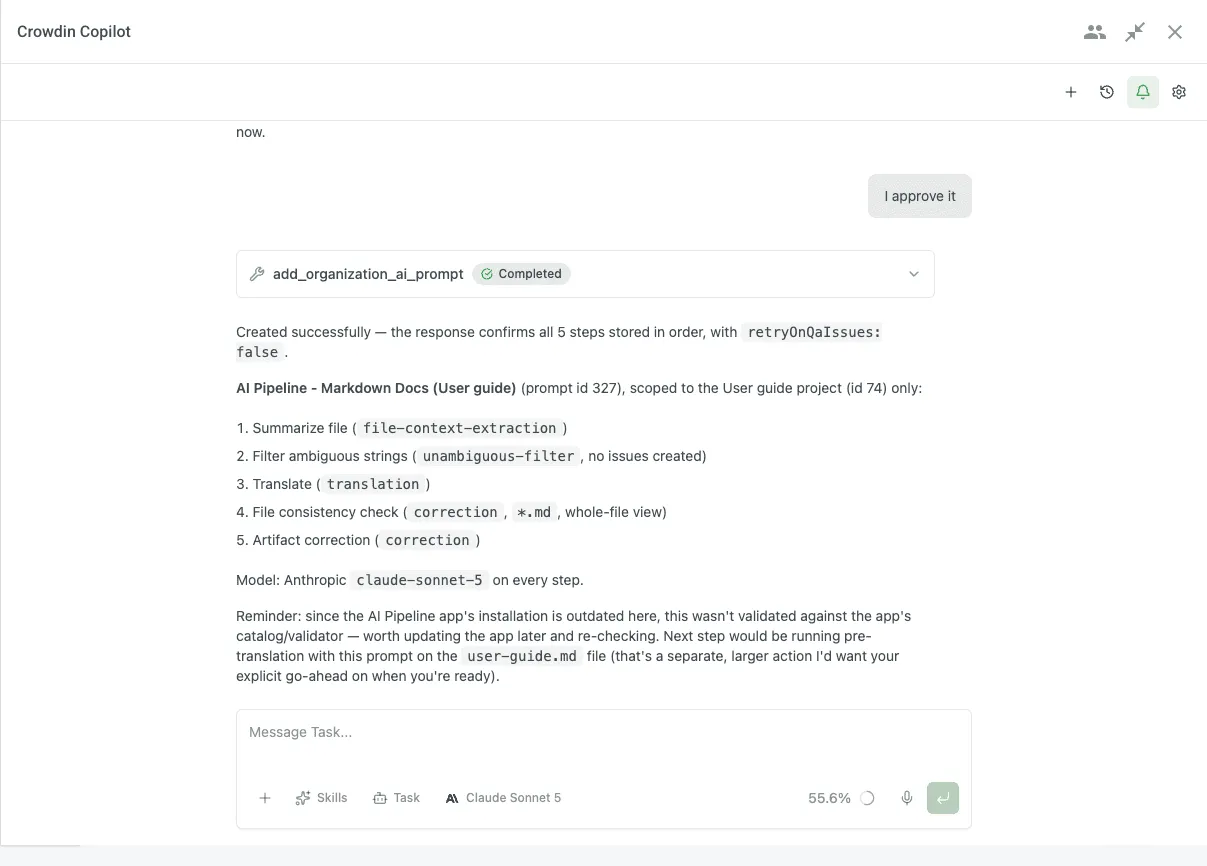
It also works on pipelines you already have: add a step, drop one, reorder them, or reuse a pipeline that already does what you described.
Crowdin Copilot use cases
What can you actually do with Crowdin Copilot? Its capabilities are not limited to a set list of buttons. Here are a few ways it is already transforming workflows:
1. Project & language management
- Instant progress checks: Ask, “In the Marketing group, which files in Italian are not finished yet?” and get an immediate list.
- Translation project digests: Stay informed with a quick summary of recently added or updated files so you never miss a change in your source content.
- Task automation: Command the AI to “Create a translation task for all new files in Folder X and assign them to any users who aren’t currently busy.”
2. Advanced quality & consistency
- Glossary creation & gap analysis: Copilot can analyze your files to identify missing terms in your glossary and suggest definitions based on your existing context.
- Cross-TM inconsistency fixes: It can scan multiple translation memories (TMs), find where “Dashboard” was translated in three different ways, and suggest a unified version to ensure a cohesive user experience.
- False positive management: Tired of manual QA? Ask Copilot to review QA checks (like spellcheck), identify obvious false positives, and move them to the “Ignore” list automatically so your linguists can focus on real errors.
3. Organizational auditing & reporting
- User management: Since the agent works at the organizational level, it can act as an admin to identify inactive users who haven’t logged in for months and suggest their removal or reassignment.
- Fast report generation: Need data for a stakeholder meeting? Ask, “How many words were translated by AI vs. MT in the last 30 days?” and get the numbers in seconds.
4. Glossaries and style guides
- No blank forms: Glossaries and style guides have Copilot built into their creation screens – a short back-and-forth instead of an empty editor and a vague sense that you should know what goes in it.
- Drafted from your own content: For a style guide, Copilot works from your existing translations rather than a template – picking up tone of voice and formality, like whether your Polish uses informal “Ty” or formal “Pan/Pani”, and keeping only the rules your translations actually back up.
See the video overview of the Crowdin Copilot:
Why Crowdin Copilot is unique
In a market full of AI assistants that mostly just rephrase text, Crowdin Copilot is a true orchestrator. Here is what makes it unique:
Full API surface access
Most AI tools are limited to the text on your screen. Crowdin Copilot has direct access to the Crowdin API, allowing it to manage users, trigger reports, and create tasks across your entire organization.
Cross-project intelligence
While other tools are project-locked, Copilot operates at the global level. You can fix inconsistencies across 50 different projects or audit every Translation Memory in your account simultaneously.
Radical transparency
Copilot features a thinking process window. You can watch its logic and see exactly which API calls it makes, ensuring you stay in control of your data.
Ambiguity synthesis
Instead of overwhelming you with hundreds of small flags, Copilot analyzes patterns. It can identify a single root cause for multiple QA errors and suggest a global fix.
Manage your usage and costs
Crowdin Copilot runs on Anthropic’s Claude models, and you can switch between the available ones mid-conversation. You can provide your own API keys or use Crowdin AI.
To give you full control over your AI spend, Crowdin Copilot displays a real-time usage and cost indicator next to the chat box.
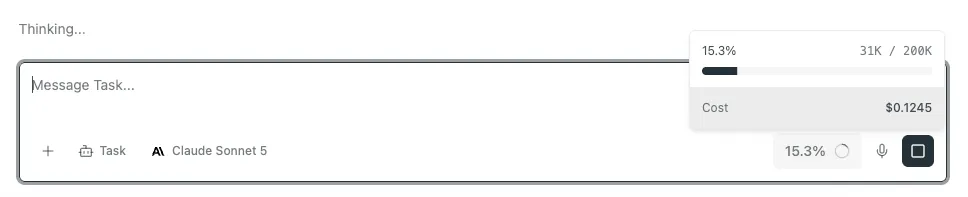
For every single request, the agent has a hard limit of $5. If a complex task hits this limit, the process will stop, a notification will appear, and you can simply send another message to continue the work.
Final pricing depends on your selected AI model and the complexity of your query.
Beyond the per-request limit, you can set daily and monthly spending caps in your AI settings – account-wide, per user, or both.
Enterprise-grade security and transparency
Security is a cornerstone of the Crowdin ecosystem. When using Crowdin Copilot, you retain complete ownership and control over your data:
- Bring Your Own Key (BYOK): Plug in your own Anthropic API key to maintain direct control over cost, usage, and security.
- No training on client data: Crowdin Copilot itself does not use your data for training purposes. If you use BYOK, you can further ensure data safety by opting out of training directly within your Anthropic account settings.
- Thinking process window: Unlike black box AI, you can watch the Copilot’s logic, see which data it gathers, and monitor every API call it makes before delivery.
- Granular permissions: Admins can restrict access by role – for example, ensuring linguists only use the Copilot for translation tasks within assigned projects.
- Full audit trail: Logs tab in your AI settings records every AI request made through your Crowdin account for the last 30 days, Copilot’s among them – so you can audit activity and troubleshoot failed requests.
Conclusion
These use cases are just the beginning. Because Crowdin Copilot has direct access to the vast capabilities of the Crowdin API, its potential is limited only by your imagination. It is designed to be flexible, adapting to the unique way your team works.
We encourage you to experiment. Challenge the Copilot with your most tedious manual tasks, try complex multi-step requests, and see how it can tailor itself to your specific workflow. The more you use it, the more ways you’ll find to save time.
Localize your product with Crowdin
FAQ
What makes Crowdin Copilot different from a standard AI translator?
While standard AI focuses only on rephrasing text, Crowdin Copilot is an orchestrator with full access to the Crowdin API. It can manage users, trigger organizational reports, and execute multi-step tasks across dozens of projects simultaneously.
Is my data used to train the AI models?
No. Crowdin Copilot uses Anthropic’s commercial API, which ensures that your proprietary translations, project data, and queries are never used to train their foundation models. Your intellectual property remains entirely yours.
Can I control who in my organization has access to the Copilot?
Yes. Crowdin Copilot strictly follows the existing permissions and roles configured in your Crowdin account. This means it only accesses the projects a user is allowed to see and only performs the actions they are authorized to take. Admins can also further refine visibility by role or create custom access groups.
How do I know I can trust the AI’s actions?
Crowdin Copilot features a Thinking Process Window. You can see the logic the AI is using, which data it is gathering, and exactly which API calls it is making before it delivers a result or executes a task.
Can I teach Copilot how our team works?
Yes. Admins can add skills – written instructions that capture your organization’s way of doing things, like how you build a glossary or what a new locale needs before launch. Write one in Settings, upload a SKILL.md file, or import from skills.sh, GitHub, or GitLab, then assign it to your agents. Copilot applies the skill whenever a conversation calls for it.
Which AI models does Crowdin Copilot use?
Copilot runs on Anthropic’s Claude models, and you can switch between them mid-conversation. Plug in your own Anthropic API key for direct control over cost and usage, or use a balance on Crowdin AI for managed models. Other AI providers configured in Crowdin power features like AI Pipeline; Copilot itself is Claude-only.
What does the percentage (%) next to the chat box mean?
This indicator measures the context window (short-term memory) of your current chat. Since each session can hold approximately 200,000 tokens, the progress bar shows how much information the AI is currently “holding in mind”. If the percentage gets very high, starting a new chat will reset the context and help the AI focus better on new tasks.
Is there a limit on how much Copilot can cost?
Yes, at two levels. Each request has a hard $5 ceiling: if a task becomes highly complex and reaches that amount, Copilot pauses and notifies you, and you send another message to confirm you’d like to continue. Separately, your AI settings let you set daily and monthly spending caps – account-wide, per user, or both. Those caps cover all native Crowdin AI features, Copilot included.

Yuliia Makarenko
Yuliia Makarenko is a marketing specialist with over a decade of experience, and she’s all about creating content that readers will love. She’s a pro at using her skills in SEO, research, and data analysis to write useful content. When she’s not diving into content creation, you can find her reading a good thriller, practicing some yoga, or simply enjoying playtime with her little one.